
Remove text from manga speech bubbles
An AI manga cleaner for dialogue, captions and SFX. The text goes; the art stays.
Use our AI manga cleaner to erase dialogue from speech bubbles or clean detected text across a page. Upload your manga, compare the result with the original, and take a clean image into your lettering workflow.
PNG, JPG & WebP · 15 MB per page · Up to 20 pages
Manga Cleaner
Cleaning intensity is set automatically.
Applied when you download.
0 cleaning / 0 completed / 0 total
1 credit per page. Failed processing is refunded.
Sign in to clean. Available free credits depend on your account; a credit pack unlocks downloads.
Cleaner Queue
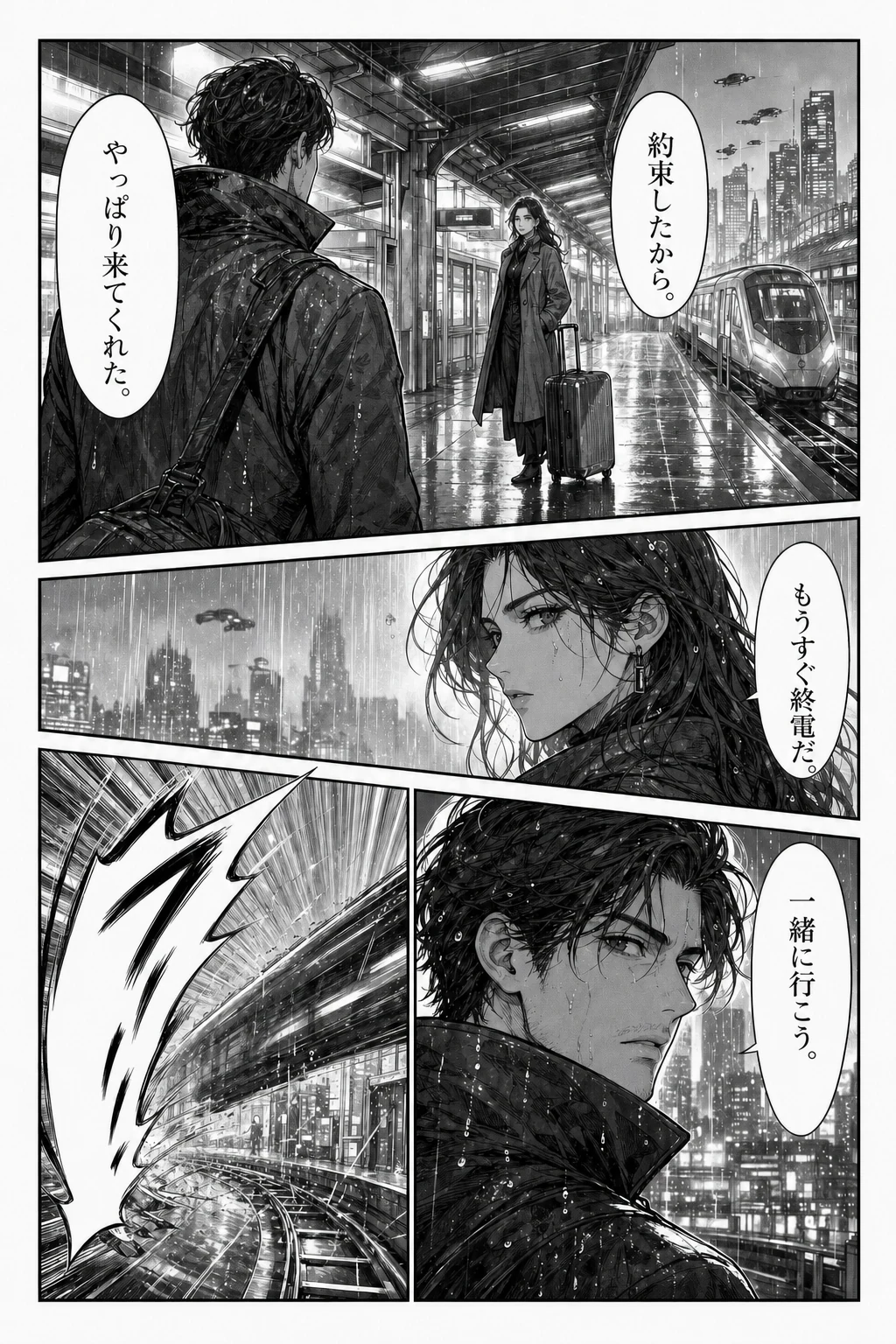
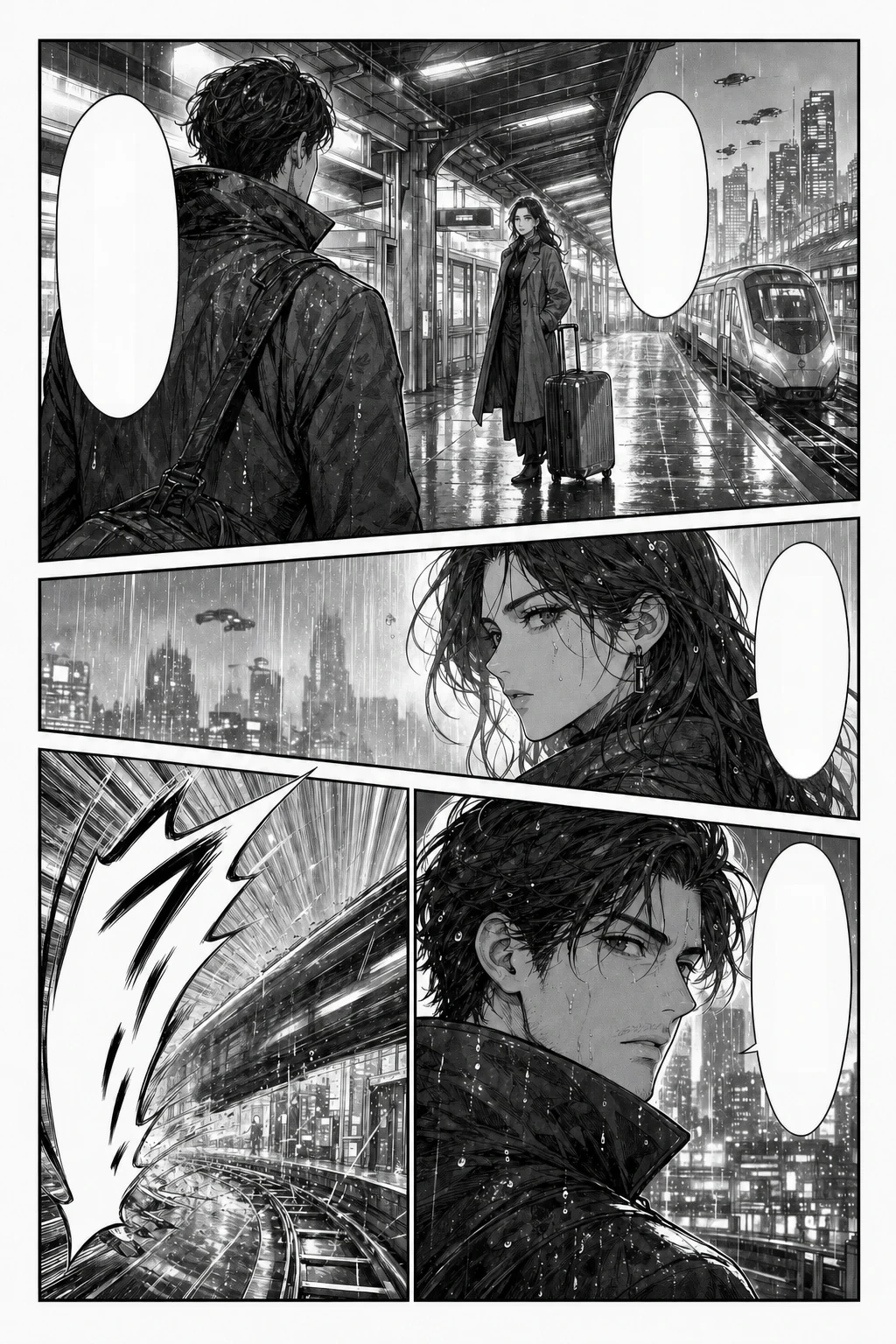
Actual manga cleaner result · drag to compare
Your clean pages will appear here
Add a manga panel or a whole chapter. Review one page while the rest of your queue processes.
How to use the manga cleaner
Start with one representative page. Check the result before you commit a whole chapter.
- 1
Upload your manga
Add a panel or page in PNG, JPG, or WebP. Keep each image within 15 MB and each queue within 20 pages.
- 2
Choose what to clean
Select Bubble text for dialogue-focused cleaning or All detected text for broader removal. Sign in, then start the queue.
- 3
Compare and download
Move the comparison slider and inspect the artwork. Download cleaned pages as PNG or WebP, individually or together in a ZIP.
At a glance
The manga cleaner removes text; it does not translate. Here is exactly what it does.
| Input | PNG, JPG or WebP manga, manhwa, manhua or comic pages. Choose Bubble text or All detected text. |
|---|---|
| Limits | 15 MB per image · up to 20 pages per queue. |
| Output | Cleaned pages with detected text removed and the area filled from the surrounding art. Download as PNG or WebP, one by one or as a ZIP. Nothing is translated or re-lettered. |
| Account | Sign-in required. Trial credits for new accounts depend on current account settings; check your balance after signing in. |
| Cost | 1 credit per page. Credits for failed pages are refunded automatically. |
| Downloads | Saving results requires a purchased one-time credit pack. No subscription; purchased credits do not expire. |
A good fit if you
- letter your own translation and need clean speech bubbles first
- want a quick first pass on dialogue before manual touch-ups
- clean up to a chapter of pages in batches
Look elsewhere if you need
- translation; use the manga translator instead
- removing whole speech bubbles, borders and tails
- layered PSD files or a typesetting editor
Facts checked against the live product on 2026-10-22.
Remove bubble text, keep the speech bubble
A manga bubble text remover clears lettering so you can add your own dialogue. This manga cleaner focuses on text rather than deleting the balloon itself. Bubble text mode is a useful starting point for dialogue-heavy pages where you want to keep the panel composition.
If you searched for “remove bubble manga” and want the entire bubble gone, that is a different edit: its border, tail, and the artwork hidden behind it also need attention. The cleaner does not promise whole-bubble removal.
- Choose Bubble text for a dialogue-focused pass.
- Inspect bubble outlines and tails after cleaning.
- Keep the original for anything that needs a manual touch-up.
Can AI remove SFX from manga?
Use All detected text when captions, signs, or sound effects also need clearing. The manga cleaner detects text and fills the affected areas from the surrounding image. Simple backgrounds are usually easier to assess than lettering woven through hair, speed lines, or patterned screen tones.
Automatic manga inpainting estimates what a covered region could look like. It cannot retrieve artwork that was never visible. Stylized SFX may be missed, and repaired textures may need a redraw. Compare both images before handing the page to a letterer.
- Check for small text fragments and softened line art.
- Review patterned backgrounds at a useful zoom level.
- Use an image editor for difficult SFX and precise redraws.
A manga panel text remover for whole-page workflows
Use the manga cleaner on a single panel or queue a chapter in batches of up to 20 images. Pages process in order. Completed pages stay available for inspection while the remaining queue continues, and failed pages can be retried without redoing successful ones.
For colored manhwa, manhua, and anime-style illustrations, start with a short test. Review gradients, fine outlines, and lettering over characters. The browser workflow avoids installing a desktop cleaner, but a careful human check still belongs in the process.
- Review each original beside its cleaned result.
- Export PNG for further editing or WebP for smaller files.
- Keep translation and typesetting as separate, deliberate steps.
When to use something else
The manga cleaner is a first pass, not a full scanlation suite. It removes detected text and fills the area from the surrounding art. It does not translate, re-letter, or give you layers to edit.
If you want translated pages, the manga translator erases and re-letters in one step. If you need to rebuild artwork under large SFX, remove whole bubbles, or keep editable layers, clean the page here and finish it in an image editor such as Photoshop, GIMP or Clip Studio Paint.
- Need the dialogue translated too? Use the single-page or batch translator.
- Need whole bubbles removed or backgrounds redrawn? Finish in an image editor.
- Need layered PSD files or a typesetting editor? This tool exports flat PNG or WebP.
Continue your manga workflow
Need translated dialogue rendered on the page? Use the translator with your original, text-bearing image. A cleaned image no longer contains the dialogue to translate.
Manga Cleaner FAQ
What does a manga cleaner do?
A manga cleaner removes detected lettering from an image and fills the cleaned regions. It prepares pages for editing or typesetting. It does not translate dialogue, write new text, or deliver a layered Photoshop document.
Can I remove a whole manga speech bubble?
This tool removes text within detected speech bubbles; it does not specifically remove their outlines or tails. Deleting a complete bubble or text box also requires rebuilding the artwork it covers. Use a manual editor when that is the result you need.
Can the manga cleaner remove text outside bubbles?
Choose All detected text to include text detected outside speech bubbles. That can include captions, signs, and some SFX. Highly stylized lettering may be missed. Bubble text mode narrows the focus but can still affect some long, confidently detected text outside a bubble.
Does it work as a manhwa or manhua cleaner?
You can upload color manhwa, manhua, comics, and anime-style artwork in the supported image formats. Try a representative page first. Gradients, dense textures, and text crossing character outlines need closer review than plain bubble backgrounds.
Is there a free manga cleaner option?
You can inspect the example without signing in. Processing your own images requires an account and costs 1 credit per page. Any free credits and daily limits depend on your account. Purchasing a credit pack unlocks downloads; this is not an unlimited free service.
Can I batch remove text from manga pages?
Yes. Add up to 20 PNG, JPG, or WebP images, each 15 MB or smaller. The manga cleaner processes them in sequence. Review completed pages, retry failed ones, and download individual results or a ZIP of the finished pages. Browser downloads support images up to 16,384 pixels on either side and 40 megapixels in total; split longer scrolls into smaller pages.
How is manga cleaner AI different from OCR or a Photoshop script?
OCR extracts text for reading or copying. A manga cleaner changes the image by removing detected text and filling its former position. A Photoshop cleaning script automates actions in that editor; here you work in the browser and can export the result for manual finishing.
Why did some text remain or the background change?
Detection can miss tiny, low-contrast, or decorative text, and inpainting can alter the nearby texture. Start from the clearest source available, compare the cleaned image with the original, and retouch difficult areas in an editor. A successful request still needs a visual quality check.
Give your next page a clean start
Upload one page to the manga cleaner, check the artwork, and choose the right mode before processing the rest.
Clean a manga page