AI manga translate
AI manga translate, one page at a time
Clearer input. A careful check. A page to keep.
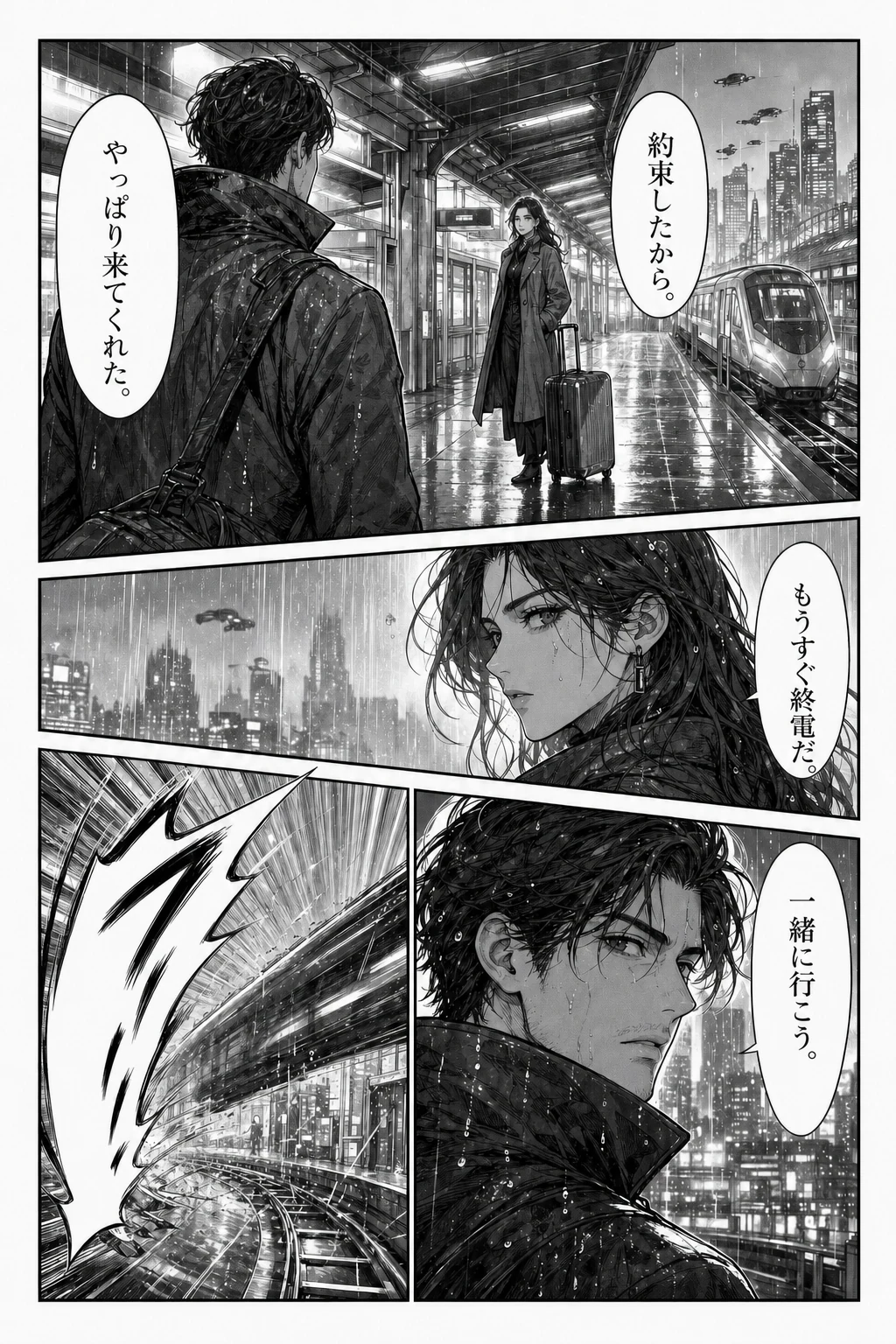
Give the words some room.
Choose a clear image with complete speech bubbles. Small, compressed screenshots make the dialogue harder to read.
JPG, PNG or WebP. Up to 15 MB.
Choose an imageDoes that line sound right?
Check the original beside the result. Names, jokes and sound effects deserve a second look.
A fluent sentence can still be wrong.
Review tips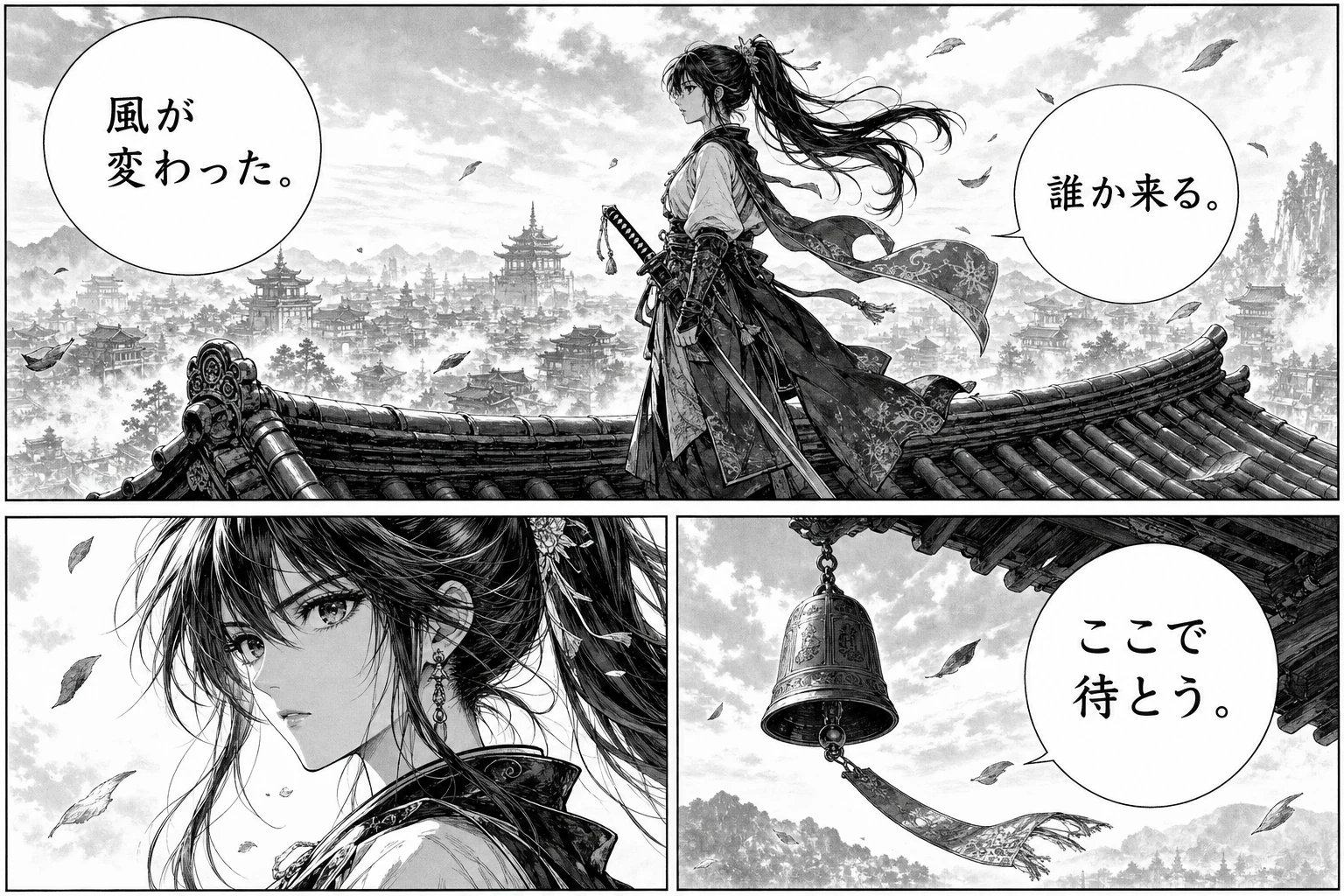
Save it, then keep reading.
Download the finished image. Keep the original beside it for another look later.
Each successful result has its own download.
Download tipsHow single page translation works
You have the page open, but the dialogue keeps stopping you. Copying unfamiliar characters into a text translator means leaving the artwork, finding the right line, and then working out which character said it. AI manga translate starts with the image you already have. Upload one page, choose the language you want to read, and review a translated image with the dialogue still on the page.
Single page AI manga translate is a useful way to check one difficult scene, or to try a representative page before committing a whole chapter. The upload, language selector, preview, and download controls sit above this guide, so you can start whenever you are ready.
AI manga translate keeps the whole page
Manga text is part of a visual conversation. A short reply can make sense only when you see the expression beside it, the previous panel, or the direction of a speech bubble. A separate list of translated sentences leaves you to put that conversation back together. Working with the page keeps the original and translated images available for that comparison.
You do not need to crop every bubble or type out Japanese characters before submitting the image. The AI manga translator processes the uploaded page and returns an image rather than an editable text document. That removes several manual handoffs, but it does not remove the need to read the result. A fluent sentence can still assign the wrong meaning to a name or miss the point of a joke. Treat the output as something you can inspect, not as a guarantee that every line is right.
Choose a clear image
Use a PNG, JPG, JPEG, or WebP image no larger than 15 MB. A clean digital page is usually easier to inspect than a photograph with glare, a folded edge, or text hidden in the binding. Keep the speech bubbles and captions inside the image. If your source is a scan, check that the smallest letters are readable before uploading it.
When you want to translate raw manga, start with one ordinary dialogue page from the material you intend to read. A page made mostly of action effects is a poor first check of everyday conversation. You can test unusual lettering separately after you have seen how normal bubbles look. Very long strips should be split into readable image sections first; this uploader does not divide them for you. If you only have a document or archive, prepare individual permitted page images before using the tool.
Upload a manga page and choose a language
Click Choose an image or drag a file into the upload area. Check the source preview before starting. The Replace image button lets you correct a mistaken choice without translating the wrong page. If you do not have an image ready, Try a sample page loads a page with source dialogue into the same workflow; it does not supply a finished translation.
Choose the target language you actually want to read. The selector includes English, Simplified Chinese, Traditional Chinese, Japanese, Korean, Spanish, French, and other options. You are choosing the output language, not telling the tool which language is printed in the source. You can inspect a local preview before signing in, but starting a translation requires an account. Check the pricing page for available plans rather than assuming that image translation is free or unlimited.
Read before you download
Press Translate page after checking the source and language. The interface shows a processing state while the request runs, followed by the result or a failure message. Leave the page open while it is working. Repeated clicks or refreshing the browser do not help a slow request finish, and refreshing can clear the local selection.
Once the result appears, read it beside the original. Start with the main dialogue, then look at the smaller captions and any text drawn over the background. Check whether every important bubble has readable text, whether a line is cut off, and whether the scene still makes sense in its original reading order. Small lettering, dense backgrounds, vertical writing, and stylized sound effects can need closer attention. The page preview gives you a way to judge those details; it is not an accuracy score. If a page fails, use the error message to check the input before trying Retry.
Check names and tone
A manga page translator can help you follow an unfamiliar scene, but the artwork still matters. Read a response with the character's expression and the panels around it. An angry reply, a teasing remark, and a polite answer may use similar words while carrying different meanings. If a translation feels out of place, compare it with the original instead of assuming the image is telling a different story.
Names and repeated terms deserve a separate check. A name that looks reasonable on one page may be translated differently elsewhere in the chapter. This single page workflow does not provide an editable glossary or let you correct OCR text inside the app. If you need a polished publication, keep notes as you review and make corrections in your own editing tool. For personal reading, a useful result may still contain a line you want to look up more carefully.
Save the reviewed image
Use Download image when the translated preview is ready. Open the downloaded file and check that it contains the translated page, rather than relying only on the button having responded. Keep the original nearby if you plan to compare wording later. A file saved on your device is also easier to organize with the rest of a chapter.
The original and translated images are saved to your account's translation history for later viewing and download. That history is separate from the temporary file selection on this screen. Translate another page clears the current selection so you can start again; it is not a command to delete earlier history. If you change your reading language, start a new translation of the page you want in that language. Changing a selector does not translate an image that was already completed.
Ready for a whole chapter?
Stay with the single page tool when you are checking a particular conversation, testing a scan, or trying a language you have not used before. You can concentrate on one result without managing a queue. It is also a sensible first step when the source has unusually small bubbles or heavy lettering over the artwork.
When several pages are ready and you are happy with the first result, move to batch manga translation. The batch page accepts up to 20 images, processes them in order, and makes completed results available while later pages continue. Both pages use the same image translation service. The difference is how you organize the work, so there is no need to learn a second translation process.
Privacy and permissions
Only submit pages you own or have permission to process. A translated image does not give you permission to publish someone else's comic. If you are preparing your own work for other readers, review the dialogue and lettering before sharing the result.
Translation runs through an online service, and the source and result are stored for account history. Avoid uploading confidential or sensitive pages without checking whether that handling suits your needs. Read the privacy policy for the site's data practices. This tool produces a translated image; it does not promise perfect artwork preservation, a human review, or an editable lettering project.
A few more answers
Can I translate a whole page into English?
Yes. Choose English as the target and submit a supported page image. You do not need to extract each bubble first. Check the resulting image for names, small captions, and dialogue that depends on context before saving it.
Does the sample use real translation?
No. It loads a source image into the uploader. You still choose a target language and press Translate page. The finished result must come back from the translation service, just as it does for your own uploaded image.
Can I edit a sentence in the preview?
The current preview is an image, not a text editor. You can compare and download it, but you cannot change the wording or move lettering inside the app. Use a separate editor when a correction is needed.
What if the result is hard to read?
Compare the problem area with the original. If the source letters are tiny, blurred, or clipped, try a clearer complete image. Check stylized effects separately. A larger file alone does not repair missing detail or guarantee a better translation.