How to Translate a Whole Manga Chapter with AI: CBZ, ZIP, Images or PDF
Translate a whole manga chapter in one run: CBZ or ZIP up to 50 pages, batches of 20 images, or in-page in Chrome. What to do with PDF or CBR, page order and retries.
 AI Manga Translator Team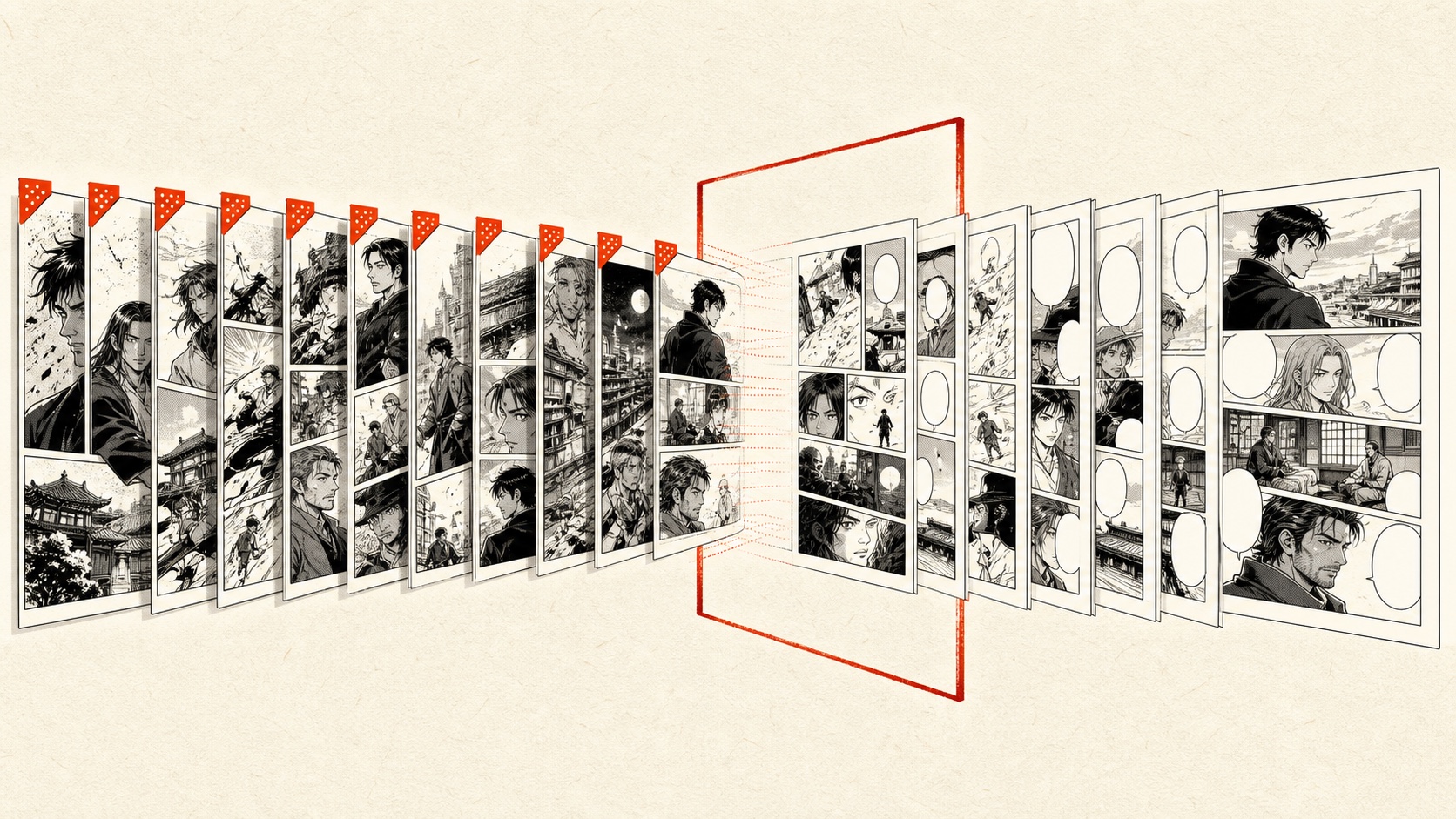
Yes, you can translate a whole manga chapter with AI in one run, as long as you pick the route that matches how the chapter is stored. A CBZ or ZIP of up to 50 pages goes into the CBZ translator and comes back as an ordered, translated CBZ or ZIP. Separate page images go into the batch manga translator, up to 20 at a time. A PDF or CBR has to be converted first, because neither is imported directly. Pages you are reading on a website can be translated in place with the browser extension.
Choose by how your chapter is stored:
- CBZ or ZIP → CBZ translator. One archive up to 100 MB, 50 image pages, 15 MB per page and 200 MB extracted. You get an ordered CBZ or ZIP once every selected page succeeds.
- Separate page images → batch manga translator. Up to 20 PNG, JPG, JPEG or WebP images per queue, 15 MB each. You get separate translated images.
- PDF, CBR or EPUB → convert to a CBZ or to page images first (see the next section), then use one of the routes above.
- Pages on a website → browser extension. Images already loaded on the page, up to 50 at a time, replaced in place.
Every route uses the same translation service: the original text is erased and the translation is lettered back into the bubbles. Each page costs 1 credit, failed pages are refunded, and downloading results requires a purchased credit pack.
If your chapter is a PDF, CBR or EPUB
None of these formats is imported directly, and renaming a file does not convert it. A CBR is a RAR archive, so changing .cbr to .cbz produces a file the CBZ translator cannot read.
- CBR: extract it with an archive tool, check that the pages are PNG, JPG or WebP, then zip the page images (or the chapter folder) and rename the
.zipto.cbz, or upload the ZIP as it is. - PDF: export each page as an image with a PDF reader or converter, keeping one image per page and zero-padded numbers in the filenames. Then add the images to the batch translator, or zip them for the CBZ translator.
- EPUB: fixed-layout comic EPUBs store page images inside the package; extract them the same way. Text-based ebooks are not manga pages and are outside what this tool does.
Only convert files you own or have permission to process. Encrypted or DRM-protected files cannot be converted or translated here.
The rest of this guide covers the separate-image batch workflow in detail.
Single-page or batch manga translator?
Use the single-page translator when you are testing a new scan, checking one difficult conversation, or trying a target language for the first time. Use the batch manga translator when several consecutive pages are already prepared and you want to avoid repeating the same upload and language-selection steps.
Both pages use the same image-translation service. Batch mode is an organization tool, not a separate quality tier. A good routine is to test one representative dialogue page first, check whether small text and names are readable, and only then add the rest of the chapter.
Prepare a whole manga chapter before uploading
Extract individual page images
The image batch uploader accepts separate PNG, JPG, JPEG and WebP pages. For CBZ or ZIP, use the CBZ translator to extract pages in your browser and export a translated archive. PDF and CBR still need conversion to supported images. For images on a webpage, the browser extension provides a separate workflow; pasting a site URL does not import a whole chapter.
Only process pages you own or are authorized to translate. If a chapter contains confidential drafts or client material, read the privacy policy before sending it to an online service.
Name pages in reading order
Do not rely on a file picker to guess the order from names such as final, final-2, and new-final. Use zero-padded page numbers:
chapter-07-page-001.webpchapter-07-page-002.webpchapter-07-page-003.webp
Zero padding keeps page 10 from sorting between pages 1 and 2. If a chapter has more than 20 pages, add a group marker as well: chapter-07-a-page-001 and chapter-07-b-page-021 make it much harder to lose your place.
Check size, clarity, and orientation
Every page must be 15 MB or smaller. Open the original files at normal size and confirm that:
- the page is upright;
- the smallest dialogue can be read;
- no caption is cut off at the scan edge;
- the page is not a low-resolution thumbnail;
- very tall webtoon images have been divided into readable sections;
- no duplicate or missing page slipped into the folder.
Compressed or blurred source text cannot be recovered by simply enlarging the canvas. Fix the source set before using credits on it.
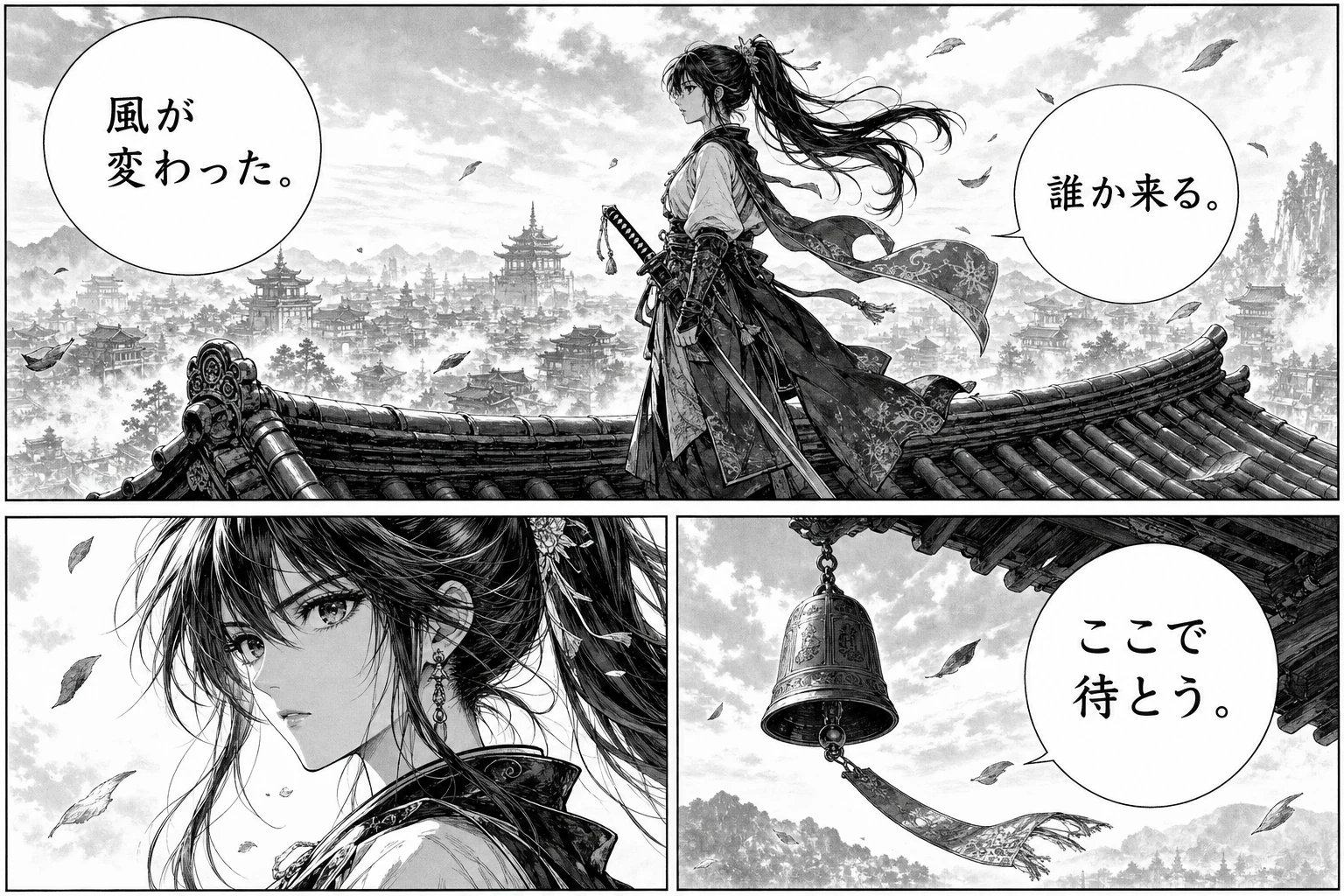
Source page · inspect small text and scan edges
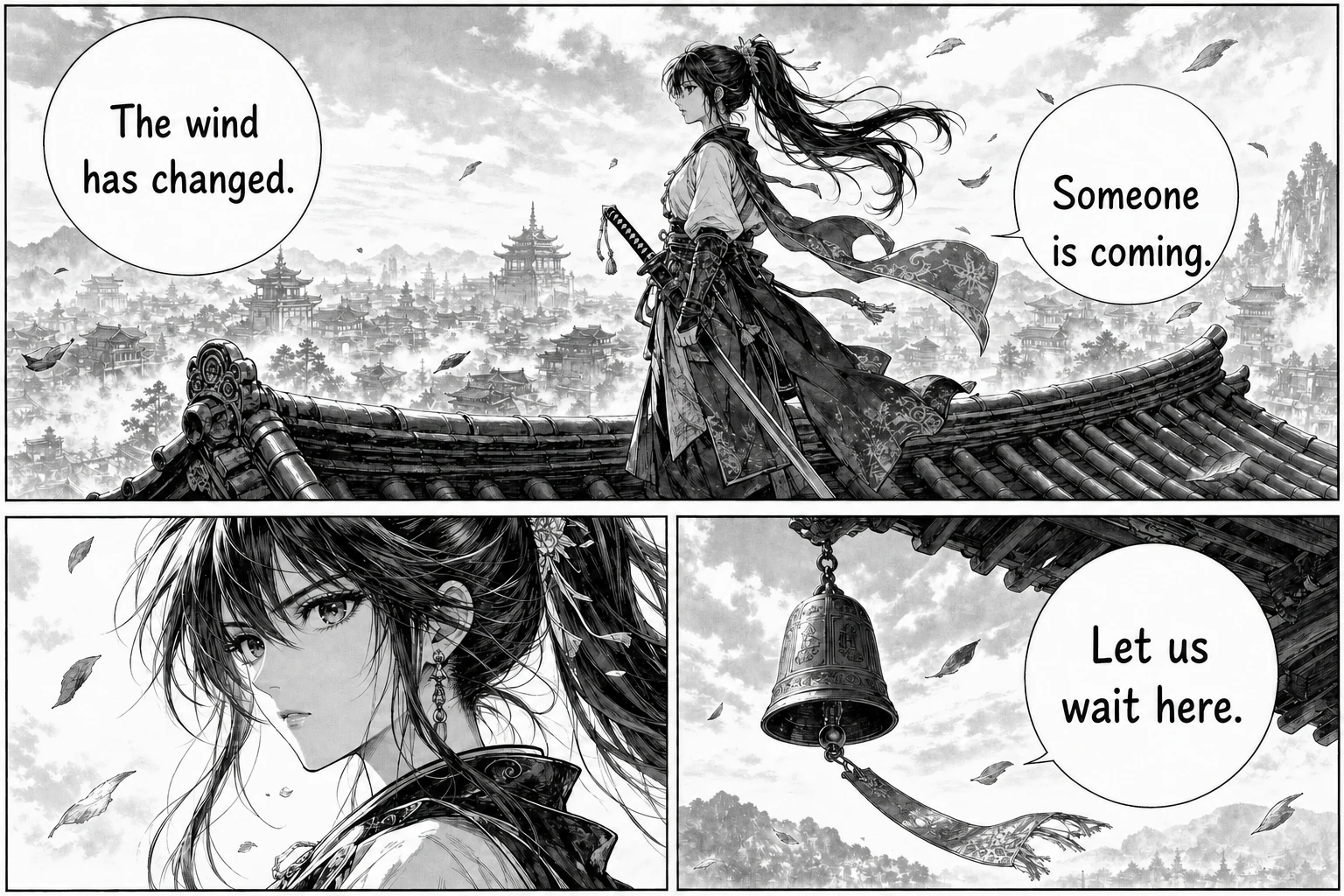
Completed page · inspect dialogue and line fit
Step by step: batch translate multiple manga pages
Step 1: add up to 20 pages
Open the batch manga translator, drag the prepared files into the upload area, or choose multiple images from your device. The queue shows every accepted filename. Select different entries and inspect their source previews before you spend credits.
Remove a duplicate, cover, or wrong-language page while the queue is idle. You can continue adding pages until the 20-image limit is reached.
Step 2: verify the displayed order
Read the filenames from top to bottom. If page 12 appears before page 2, go back and fix the filenames rather than hoping downloads will sort themselves later. The current queue does not support drag-to-reorder, so orderly source names are the safest control.
For double-page spreads, decide before upload whether the spread should stay as one image or be split. Keep it whole if the artwork and text remain readable; split it only when each half can stand alone without breaking a shared bubble or panel.
Step 3: choose one target language and typography setup
Choose the language in which you want to read the chapter. The setting applies to the pages you are about to process. If you need both English and Spanish copies, run the source set twice and save each result set in a clearly named folder.
Font, alignment, minimum font size, and the speech-bubbles-only preference can help shape the returned lettering. Use the same choices for one chapter so the reading experience does not change page by page.
Step 4: start the queue and keep the tab open
Sign in, check that you have enough credits for the selected pages, and start translation. Pages move through ready, processing, completed, or failed states one at a time in their displayed order.
Keep the browser tab open. The pending queue lives in the current browser session; refreshing does not make it faster and may clear the local list. The active preview follows the current page, while the progress indicator shows how many entries are finished.
Step 5: review finished pages before the queue ends
You do not have to wait for the final page before checking the first one. Open a completed result, compare it with the source, and look for missing bubbles, cropped lines, unusual name choices, and text that covers important art.
Early review is useful: if the same character name already looks wrong on page 2, write down the preferred spelling and check it deliberately on later pages. A green completed state means the service returned an image; it does not mean a human proofreader approved every line.

Another source layout in the queue
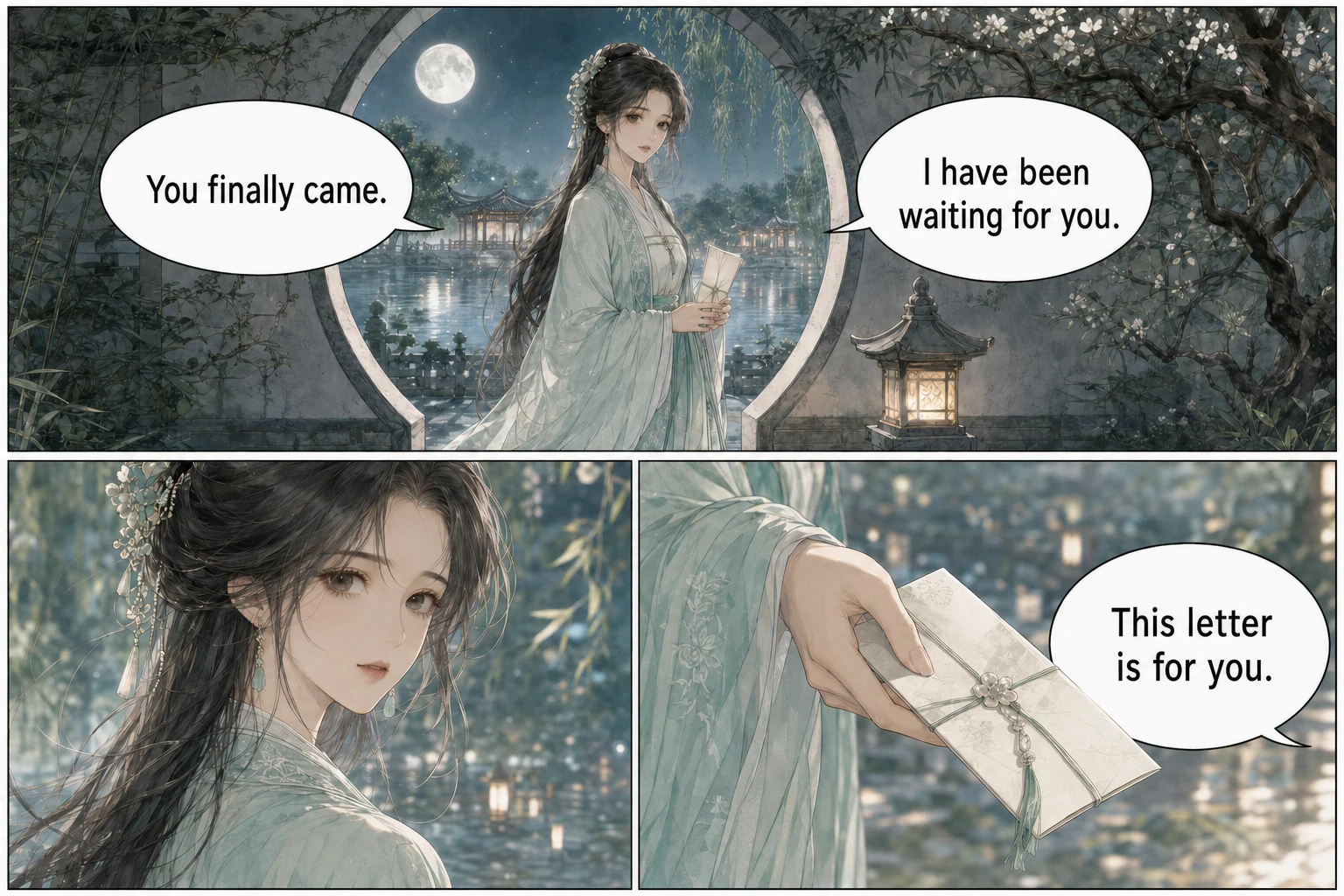
Review every returned layout separately
Step 6: retry only the pages that failed
One damaged scan or temporary service error does not erase the pages that worked. Each queue entry keeps its own status and message. When the run ends, the translation button counts only entries that are still ready or failed; starting again retries those entries and leaves successful pages alone.
Read the error before retrying. An unsupported format, oversized file, expired sign-in, and unavailable translation service require different fixes. If the source itself is bad, remove that failed entry while idle, repair or replace the image, and add it again.
Failed translations return their page credit. Completed pages remain available for review and download.
Step 7: download and count the completed images
Every successful page has its own download action. Once at least two pages are complete, Download all completed saves the results that are ready at that moment. Later pages are not silently included.
The browser may ask whether the site can download multiple files. Allow it only if you want the bulk action; otherwise download one page at a time. The files arrive separately rather than as a ZIP or ebook.
Open the destination folder and compare its file count with the completed count in the queue. Spot-check the first, middle, and last image, then store translated pages separately from originals. Account history preserves completed source and result images, but a clean local folder remains the easiest way to keep a chapter in order.
How to translate a chapter longer than 20 pages
Split the chapter into groups before uploading. For a 47-page chapter, a simple plan is:
- group A: pages 001–020;
- group B: pages 021–040;
- group C: pages 041–047.
Finish, review, and download group A before clearing the queue. Record the last completed filename, then continue with group B. Do not mix the final pages of one chapter with the first pages of another just because space remains in the queue; a clean boundary is easier to audit.
If a page fails near the end of a group, keep its slot noted until the replacement is downloaded. A folder containing 19 apparently finished files and one forgotten error is much harder to catch after you start reading.
Keep names and terms consistent across the chapter
The current batch workflow processes pages separately and has no shared editable glossary. Before treating the result as finished, search visually through the chapter for recurring items:
- character names and nicknames;
- honorifics and titles;
- places, organizations, attacks, and magic terms;
- pronouns when the speaker is off-panel;
- repeated jokes or catchphrases;
- sound effects that matter to the action.
For personal reading, a short note beside the chapter folder may be enough. For work you plan to publish, do a separate proofreading and lettering pass. AI output can accelerate a first reading copy; it does not replace permission, editorial judgment, or quality control.
Frequently asked questions
How many manga pages can I translate at once?
The current batch queue accepts up to 20 images, with a 15 MB limit for each image. For a longer chapter, translate it in numbered groups, save the completed images, then clear the queue and add the next group.
Can I upload a PDF, CBR, or CBZ manga chapter?
CBZ and ZIP are supported by the dedicated CBZ translator: archives up to 100 MB and 50 images, with a 15 MB per-image and 200 MB extracted-total limit. PDF, CBR and EPUB are not imported directly; export the pages as images or repack them as a ZIP/CBZ first. Renaming a CBR to CBZ does not convert it.
Will one failed page stop the whole manga chapter?
No. Every page has its own status. A failed entry keeps its error while the queue continues, and completed results remain available. After the run, retry the failed or still-ready pages without reprocessing successful ones.
Does Download all create a ZIP or finished comic book?
On the image batch page, Download all saves completed images as separate files. For an ordered CBZ or ZIP, use the dedicated CBZ translator and finish every selected page before exporting. Both workflows require a purchased credit pack for downloads; PDF and CBR export are not supported.
Will character names stay consistent across every page?
Consistency is not guaranteed. Pages are translated as separate jobs and the current workflow has no shared editable glossary. Review repeated names, places, titles, and special terms across the full chapter before sharing the result.
Can I close the tab while batch manga translation is running?
Keep the tab open until the pending queue finishes. The active queue belongs to the current browser session. Completed source and result images are saved to account history, but closing or refreshing can interrupt the local list of pages still waiting.
A reliable whole-chapter workflow in one sentence
Test one page, prepare and number the source images, translate no more than 20 at a time, review results as they finish, retry only failures, count every download, and check recurring names across the complete chapter.
Open the batch manga translator →
Reading on Pixiv? Our Pixiv translation guide covers browser extensions, manual translation without AI, and the difference between page text and image lettering.